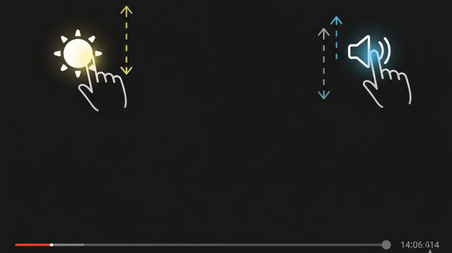
Thanks to the swipe controls, you can change the brightness and volume levels of your YouTube videos just swiping up or down with your finger. There is no need to look for any buttons to perform this action or go to the notifications bar. All you have to do in order to change the brightness or volume is to swipe up/down on the left or right side of the screen accordingly.
What Are Swipe Controls?
The swipe controls are rather simple to understand from the functional point of view. Swiping up/down on the left side of the video player affects the brightness level. Swiping up/down on the right side of the video player affects the media volume level. Changes occur instantly after the gesture.
Do the Official YouTube App Has Any Swipe Controls?
Unfortunately, the official YouTube application does not offer any swipe controls except for the standard ones like swipe to seek and double-tap to skip. It means that you have to use the hardware buttons or system settings in order to perform these actions. This fact negatively affects your video watching experience.
Swipe Controls in YouTube Vanced
YouTube Vanced app allows you to use various swipe controls right in the video player. You do not have to install any additional apps or do anything else in order to use the swipe controls. The brightness and volume swipe controls are available for all videos watched on YouTube Vanced.
In addition to ad-blocker, background play, and SponsorBlock, the swipe controls are another advantage of your video watching experience.
Thanks to the Vanced MicroG application that allows you to sync your YouTube Vanced experience, your YouTube experience will be perfect.
How to Activate and Configure the Swipe Controls?
By default, the swipe controls in YouTube Vanced are activated. You can configure the mentioned swipe controls in the Vanced Settings menu at Player Settings.
- Brightness Sensitivity – you can configure the sensitivity of the brightness adjustment process depending on your finger movement;
- Volume Sensitivity – you can increase or decrease the sensitivity of the volume adjustment process;
- Override Auto-Brightness – force the brightness adjustment regardless of the system settings;
- Gesture Area – the left half of the screen is used for the brightness adjustment process, while the right half is used for the volume.
Why You Need the Swipe Controls?
- No interruptions – you can change the settings without leaving the player and pausing the video;
- One-handed usage – you can control the settings using only one hand when holding your smartphone;
- Precision adjustment – set the settings to the needed value precisely;
- Night vision – adjust the brightness to the lowest possible value under the system minimum;
- Quick volume control – immediately reduce the volume without using the hardware buttons.
Swipe Controls VS Hardware Buttons
Although the hardware buttons are universal and work anywhere in the phone, they are not convenient to use for the fast adjustment of videos since they are hard to reach depending on the ways you hold your smartphone. That’s why swipe controls are preferable since they provide you with a faster opportunity.
Who Needs Swipe Controls?
- Night viewers – people who watch YouTube videos in bed and need fast brightness adjustment without blinding themselves;
- Public viewers – people who watch YouTube videos in public places and need fast volume adjustment;
- One-handed users – all the people who use their smartphones with one hand and need to control some settings;
- Long session viewers – all the people who need to adjust comfortable settings in videos.
Conclusion
YouTube Vanced swipe controls improve the video watching experience because they allow you to perform some adjustments without leaving the video or pausing it.